
Enable 21 CFR Part 11 with SignWell
21 CFR Part 11 is a U.S. FDA regulation that sets requirements for electronic records and electronic signatures in regulated industries like pharmaceuticals, biotechnology, and medical devices.
When enabled, SignWell adds additional signing controls to support Part 11 requirements, including signer authentication, signing reasons, and detailed audit trails.
Important Note: Part 11 compliance is a shared responsibility between SignWell and your organization. SignWell provides the technical controls, but does not certify Part 11 compliance on behalf of your organization. Your organization is responsible for verifying signer identities through your own standard operating procedures and maintaining any required FDA certifications.
Plan Requirement: 21 CFR Part 11 Compliance is available on the Business plan.
How Part 11 Works in SignWell
When 21 CFR Part 11 is enabled for a workspace, every new document and template created in that workspace automatically includes Part 11 controls:
- Every signer must authenticate with a one-time passcode (OTP) sent to their email so OTP is automatically enabled and cannot be disabled for each recipient.
- Every signer must select a signing reason for each signature and initials field (e.g., "I approve this document").
- The completed PDF includes the signer's name and the field ID on each signing field, an Electronic Signature Details page with per-field signing data, and an enhanced audit report.
- Certain features that could weaken compliance are automatically enabled or disabled (depending on the feature).
- Disabled when Part 11 is on:
- Get Link - the option to share a document via a direct link
- Self Signing - the "I am the only person signing" option when creating a document
- In Person Signing - the option to have someone sign in person on your device
- Save and Apply Signature Everywhere - the option that lets signers apply their signature to all fields at once instead of clicking each one
- Sender Pre-Signing - the ability for the document sender to sign their own signature/initials fields before sending
- Separate Completed Documents - the option to split a completed document into individual files for each signer
- Recipient Reassignment - the option that lets signers reassign the document to someone else
- Automatically enforced when Part 11 is on:
- OTP Authentication - required for every recipient via their delivery method (email or SMS) and cannot be disabled or replaced with a manual passcode
- Template Link Email Verification - the email verification step on template links cannot be turned off
- Contact Name Required - every recipient must have both a name and a contact method (email address or phone number)
- Single Delivery Method - on Part 11 documents, each recipient uses either email or SMS, not both.
- Disabled when Part 11 is on:
SignWell has two signing modes for Part 11 documents: Streamlined Signing (the default) and Per-Signature Authentication. Both are explained below.
Enabling 21 CFR Part 11
Part 11 is a workspace-level setting. If you have multiple workspaces and want Part 11 enabled on all of them, you'll need to enable it in each workspace individually.
-
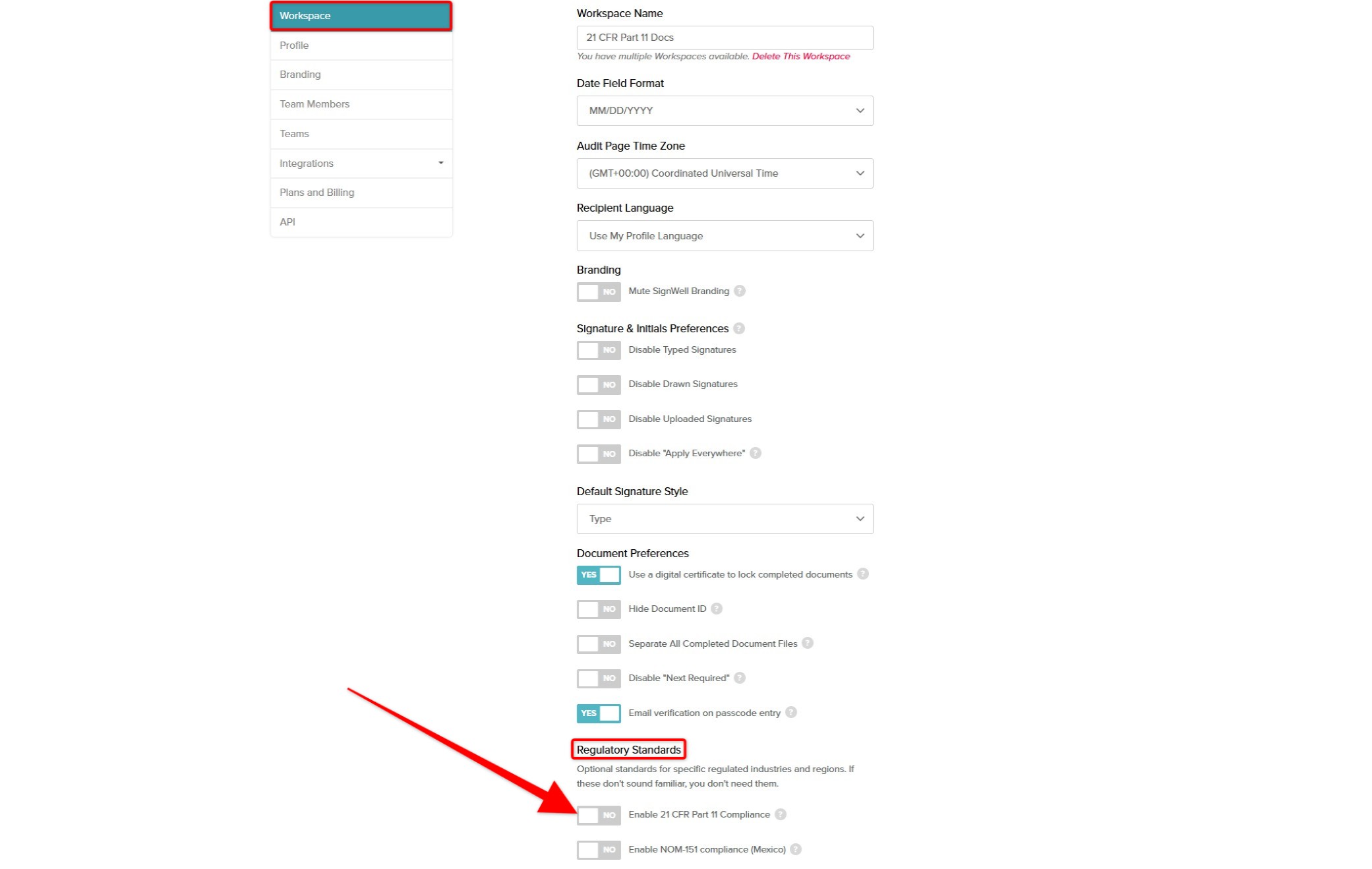
Go to Workspace Settings and scroll down below Document Preferences to the Regulatory Standards section:
-
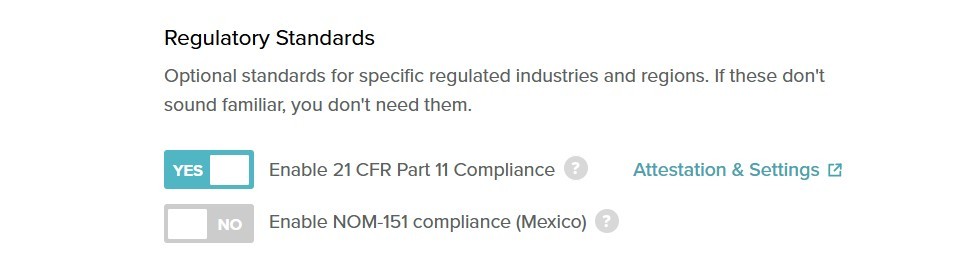
Click the toggle for Enable CFR 21 Part 11 Compliance
-
An attestation notice will appear asking you to confirm that your organization understands the shared responsibility:
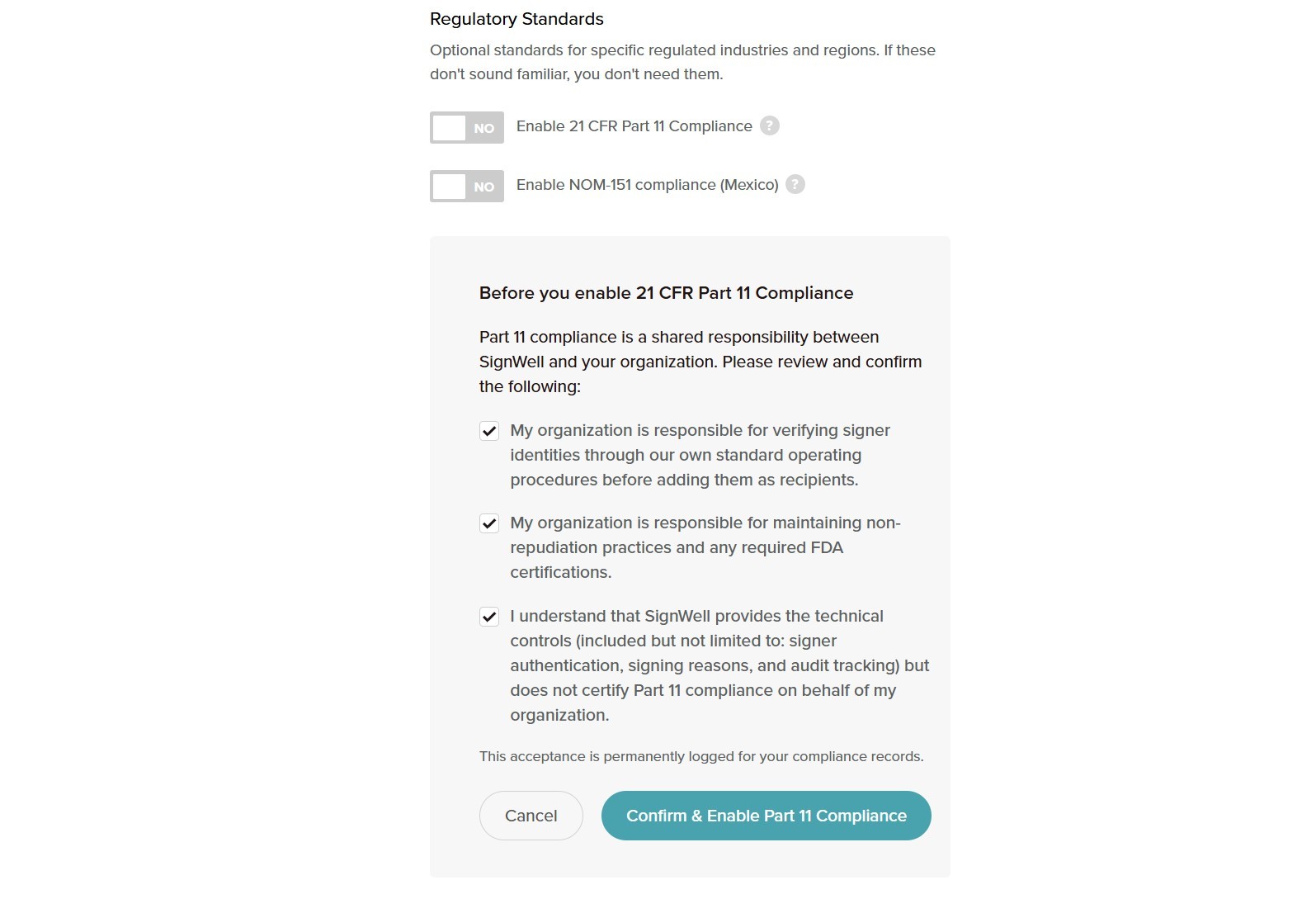
- Read and check all three checkboxes to Confirm & Enable Part 11 Compliance.
Your acceptance is recorded in your Workspace's Attestation History and logged for your compliance records, including the date, your name, and the version of the notice you accepted.
Important Note: Only the Account Owner and Account Admins can enable or disable Part 11. If you disable Part 11 and later re-enable it, the attestation modal will appear again, and a new acceptance record will be created.
Part 11 Attestation & Settings Page
After enabling Part 11, an Attestation & Settings link appears next to the Part 11 toggle. Click it to access Part 11-specific settings:

The Attestation & Settings page has three sections:
- Per-Signature Authentication
By default, Part 11 uses Streamlined Signing: which means that the signer authenticates with an OTP once when they open the document, signs all their fields with signing reasons, and then authenticates one more time to complete the document.
If your organization requires authentication at every single signature and initials field, you can enable Per-Signature Authentication. When this is on, the signer must enter their OTP passcode every time they sign or initial a field:

All other Part 11 controls (signing reasons, disabled features etc.) work the same regardless of which mode you use. This setting only controls whether OTP is required once per session or at every field, and the Electronic Signature Page and the Audit Report will reflect this difference.
- Attestation History
This section shows a record of every time Part 11 was enabled for this workspace, including who accepted the attestation and when:

- Custom Signing Reasons
Signing reasons describe why each person is signing a Part 11 document. SignWell includes three default reasons that are always available and cannot be edited or deleted:
- I approve this document
- I reviewed this document
- I wrote this document
You can also create custom signing reasons for your organization. To add a custom signing reason:
-
On the Attestation & Settings page, scroll to the Custom Signing Reasons section and enter the custom reason in the input area (up to 50 characters):
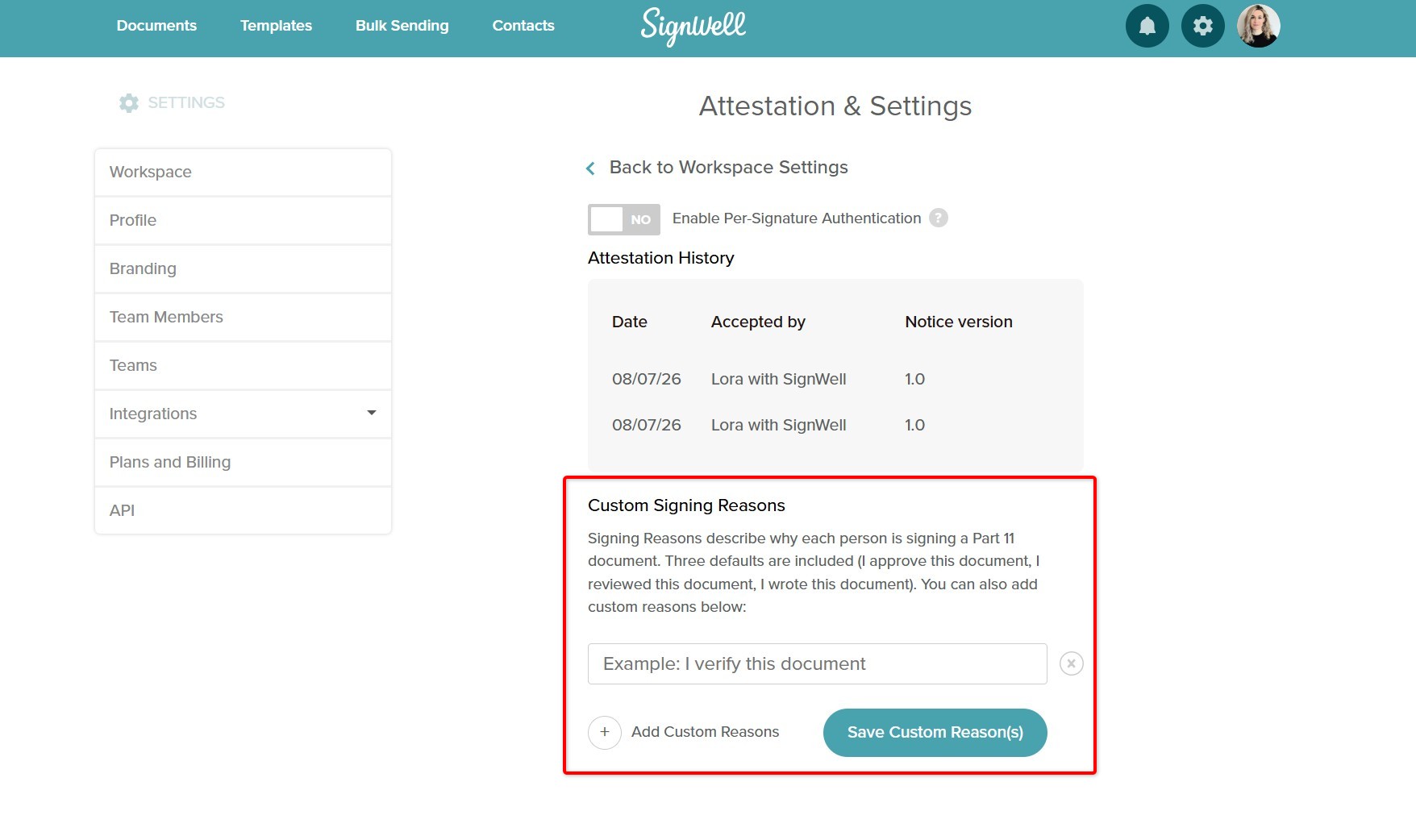
- Save your custom reason
- Click to Add Custom Reason create more signing reasons
Custom reasons appear alongside the defaults in the signing reason dropdown for all signers on Part 11 documents in that workspace. You can have up to 15 custom reasons in addition to the 3 defaults.
To edit a custom reason, click into it and type the updated name. To delete one, click the delete option and confirm. Completed documents always retain the original reason that was selected at the time of signing, even if you later edit or delete that reason.
The Signing Experience
When a signer receives a Part 11 document, the experience is slightly different from a standard SignWell document. Here's what they'll see.
Signing Request Email
The signing request email includes a small badge with a shield icon and the text "21 CFR Part 11 Enabled" above the "View & Complete Document" button. This lets the signer know they'll encounter additional authentication steps:

For SMS recipients, the signing request is sent as a text message. The Part 11 badge does not appear on SMS signing requests because SMS messages are plain text with limited space.
OTP Authentication
When the signer clicks the link to view the document, they land on an authentication screen asking them to verify their identity and enter a one-time passcode (OTP).
- For SMS recipients, the screen asks for their phone number and the OTP is sent to their phone by text message.
- For email recipients, the page asks for their email and the OTP is sent to their email.

The OTP is a 6-digit numeric code. It stays valid for the duration of the signing session, and only expires when:
- The document is completed
- The signer clicks "Forgot passcode?" (which invalidates the current passcode, sends a new one and ends the current document session)
- The session times out after 15 minutes of inactivity or the recipient navigates away from the document

Signing Reasons
When a signer clicks on a signature or initials field, the signature modal includes a Signing Reason dropdown below the signature area. The signer must select a reason before they can save their signature or initials:

- After the signer selects a reason on their first signature field, that same reason is automatically pre-selected on their remaining signature fields. The same applies to initials - the reason selected on the first initials field carries forward to the remaining initials fields.
- Signature and initials fields are tracked separately, so selecting a reason on a signature field won't carry over to initials (and vice versa).
- The signer can always change the reason on any individual field.
- A signer can use different reasons on different fields within the same document.
Streamlined Signing: How Signers Complete a Document
In Streamlined Signing (the default mode), the signer:
- Authenticates with their OTP when they open the document
- Signs each field and selects a signing reason for each one
- Clicks Sign & Complete when all fields are filled in
-
A final authentication modal appears asking them to enter their OTP one more time:
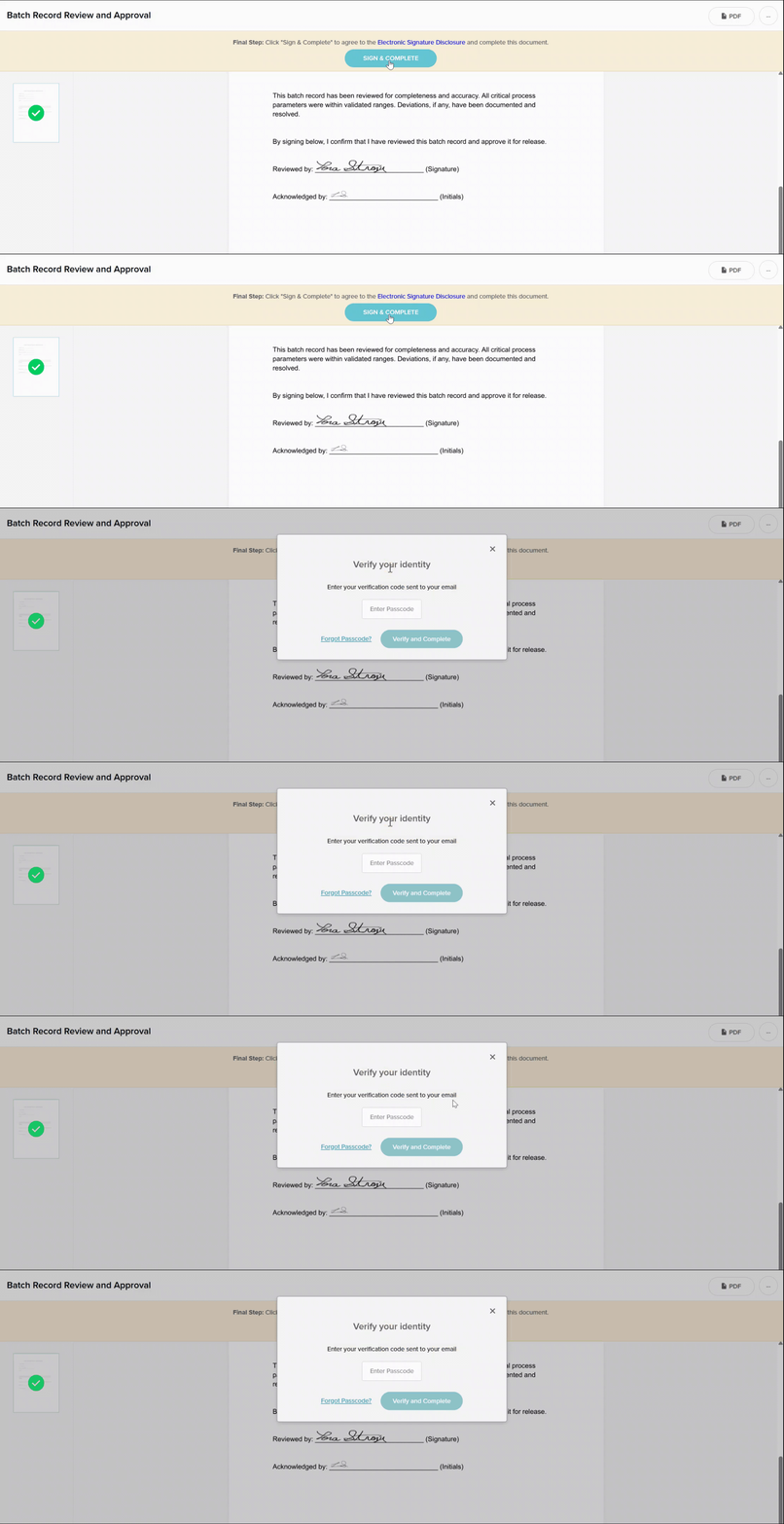
- After entering the final OTP, the document is completed and all signatures are officially executed.
This final authentication step is what officially executes all the signatures. The signing reasons and signature placed during the session become the formal record at this point.
Per-Signature Authentication: How Signers Complete a Document
In Per-Signature Authentication mode, the signer:
- Authenticates with their OTP when they open the document
-
At each signature and initials field, the modal includes the signing reason dropdown and a passcode field - the signer must select a reason and enter their OTP for every field:
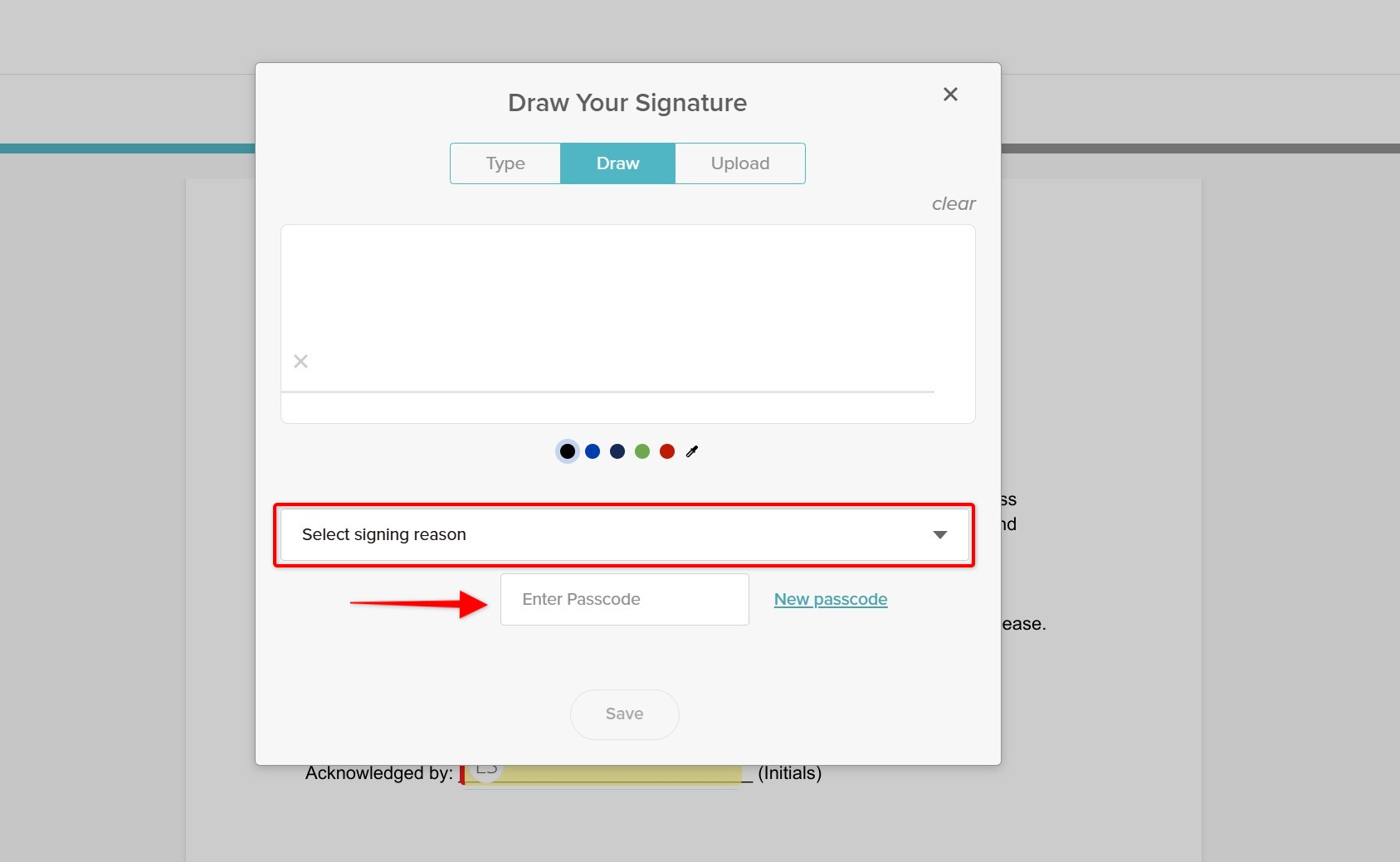
- The passcode is not auto-applied between fields - the signer must enter it each time
- When all fields are complete, the signer finishes the document normally (no additional final authentication is needed since each field was already individually authenticated)
Streamlined & Per Signature Authentication OTP Protocals
What happens if the signer forgets or loses the passcode?
If a signer forgets their passcode, they can click the "Forgot passcode?" link. This is not a simple resend - here's what happens:
- The current passcode is immediately invalidated
- The signer's session ends and they're taken back to the OTP authentication screen
- A new OTP is automatically sent to their email
- The signer enters the new passcode to re-access the document and continue signing
Session Timeout
Part 11 documents have a fixed 15-minute inactivity timeout. If the signer stops interacting with the document for 15 minutes, their session expires and they'll need to re-authenticate with a new OTP.
After re-authenticating, the signer picks up where they left off - any fields they already signed are preserved.
The Completed Document
A completed Part 11 document is a single package made up of three parts:
- the completed PDF (with field IDs and names for each signature/initials field),
- the Electronic Signature Details page, and
- the audit report.
These three parts are always kept together and cannot be separated.
Field IDs on the Completed PDF
Each signature and initials field on a completed Part 11 document displays a field ID and the signer's name above the field:

The format is: [Field ID]* [Signer Name]
- Signature fields use IDs like S-01, S-02, S-03
- Initials fields use IDs like I-01, I-02, I-03
- Example: "S-01* Lora Smith" or "I-01* Lora Smith"
The asterisk after each field ID refers to a footnote at the bottom of each page: "*Refer to Electronic Signature Details page." This tells the reader exactly where to find the signing reason and timestamp for that field:

Field IDs are assigned by position on the page, not by signing order. Non-Part 11 documents do not show any field IDs.
Electronic Signature Details Page
Part 11 documents include an Electronic Signature Details page that appears between the completed document and the audit page in the PDF:

- Streamlined Signing: All entries for a signer show the same date and time - the moment of the final Sign & Complete authentication. This is because all fields are officially executed together in one signing event.
- Per-Signature Authentication: Each entry shows its own date and time, since each field is individually authenticated and executed at a different moment.
Non-Part 11 documents do not include this page.
Audit Report
The audit page for Part 11 documents replaces the standard "signed the document" entry with more detailed signing events. Every OTP authentication event gets its own line item with an IP address.
For SMS recipients, the audit page identifies the signer by their phone number instead of their email address. Each authentication event records which delivery method the passcode was sent to (email or SMS), so the audit report states how the signer was reached.
Streamlined Signing audit entries:
The audit shows the signer's initial authentication, any other events, the final authentication at Sign & Complete, and then a single summary execution line:
- "Successfully entered passcode" → when the signer first accessed the document
- "Successfully entered passcode" → final authentication at Sign & Complete
- "Signature executed. Covered fields: S-01, S-02, I-01. Signing reasons recorded for each field."
The individual signing reasons are not listed in the audit - they appear on the Electronic Signature Details page instead. The audit confirms they were recorded.
Per-Signature Authentication audit entries:
The audit shows each field as an authentication + execution pair, with the full signing reason on each execution line:
-
"Successfully entered passcode"
"Signature executed: S-01. Meaning: I reviewed this document."
-
"Successfully entered passcode"
"Signature executed: I-01. Meaning: I approved this document."
- "Completed the document"
Viewing Completed Documents in the Web Browser
When you view a completed Part 11 document in SignWell's web viewer (rather than downloading the PDF), you'll see a yellow notice at the top:

Field IDs, the Electronic Signature Details page and the Audit Report are only included in the downloaded PDF, not in the web view. Always download the PDF for the complete compliance record.
Features Automatically Disabled in Part 11 Mode
When Part 11 is enabled, several features are automatically locked to prevent non-compliant workflows. If you click on a disabled feature, a modal will explain why it's unavailable.
Get Link
The Get Link option is grayed out on Part 11 documents. Documents must be sent directly to specific, identified recipients.
Self Signing
The "I am the only person signing" option is hidden when Part 11 is enabled, since self-signing bypasses OTP authentication.
In Person Signing
In Person Signing is not available for Part 11 documents, since it bypasses the OTP requirement.
Save and Apply Signature Everywhere
This workspace setting is automatically forced to "yes" (disabled for signers) when Part 11 is on. Signers must click into each signature and initials field individually to ensure they select a signing reason for each one.
Sender Pre-Signing
The document sender cannot pre-sign signature or initials fields on Part 11 documents. Every signer, including the sender, must authenticate via OTP and sign their fields through the normal signing flow. The sender can still prefill non-signature fields like text and date fields.
Recipient Reassignment
The option for signers to reassign the document to someone else is automatically disabled in Part 11 workspaces. The Reassign button is completely hidden from the signer's view.
Separate Completed Documents
The option to separate a completed document into individual files is disabled. The completed PDF, Electronic Signature Details page, and audit trail must stay together as one package.
Template Link Email Verification
If you create a template link for a Part 11 template, email verification is automatically turned on and cannot be disabled. Every signer must verify their email before accessing the document.
SMS is not available as a verification method for Part 11 template links. Email verification is the only option for template links on Part 11 documents.
Manage Recipients - OTP Cannot Be Disabled
If you use "Manage Recipients" to change or add recipients on an in-progress Part 11 document, OTP authentication is required for all recipients and cannot be turned off.
Contact Name Requirement
When Part 11 is enabled, every recipient must have a name and a contact method (email address or phone number). On Part 11 documents, each recipient uses one delivery method only - a recipient cannot have both an email and a phone number on the same Part 11document. You cannot send a Part 11 document to just an email address without a name. This applies anywhere you add recipients - the document builder, the add contacts modal, and the contacts view.
When Part 11 is disabled, you can send documents to an email address without a name, as usual.
Inheritance and Toggle Behavior
Part 11 is a workspace-level setting. When you enable it, all new documents and templates in that workspace inherit Part 11 controls. When you disable it, new documents go back to normal.
- In-progress documents: If a document was created while Part 11 was on, it retains its Part 11 controls even if you later disable Part 11 at the workspace level. Signers still need to authenticate and select signing reasons.
- Completed documents: Completed Part 11 documents always retain their Part 11 audit data, Electronic Signature Details page, and field IDs, regardless of the current workspace setting.
Common Questions
Does Part 11 apply to all my documents?
Only documents created while Part 11 is enabled for the workspace. You can have Part 11 on for one workspace and off for another.
Can signers use different signing reasons on different fields?
Yes. While the signing reason auto-applies from the first field, the signer can change it on any subsequent field. A signer can have different reasons across their signature and initials fields on the same document.
What's the difference between Streamlined Signing and Per-Signature Authentication?
In Streamlined Signing, the signer authenticates once to open the document and once more to complete it. All signatures are executed together at the end. In Per-Signature Authentication, the signer enters their OTP at every individual field, and each field is executed separately. Both modes require signing reasons on every field.
What happens if the signer's session times out?
After 15 minutes of inactivity, the session expires. The signer re-authenticates with a new OTP and picks up where they left off. Fields they already signed are preserved.
Can I still use templates with Part 11?
Yes. Templates created in a Part 11 workspace inherit all Part 11 controls. Documents created from those templates include OTP authentication, signing reasons, and the full compliance package.
Why can't I separate the completed document into individual files?
Part 11 requires the audit trail and Electronic Signature Details to remain attached to the signed document as one package. Separating them would break the connection between signatures and the audit record.
Where do I see the signing reasons for each field?
On the Electronic Signature Details page in the completed PDF. This page appears between the signed document and the audit trail, and lists each field's ID, signer name, signing reason, and timestamp.
I see a "Preview only" notice when viewing a completed document. Is something wrong?
No. The web viewer shows a preview of the completed document, but field IDs and the Electronic Signature Details page are only available in the downloaded PDF. Download the PDF for the full compliance record.
If you have questions about 21 CFR Part 11 in SignWell, contact us at support@signwell.com.